How to Use TouchCric on PC in 2025 (Step-by-Step Installation Guide)
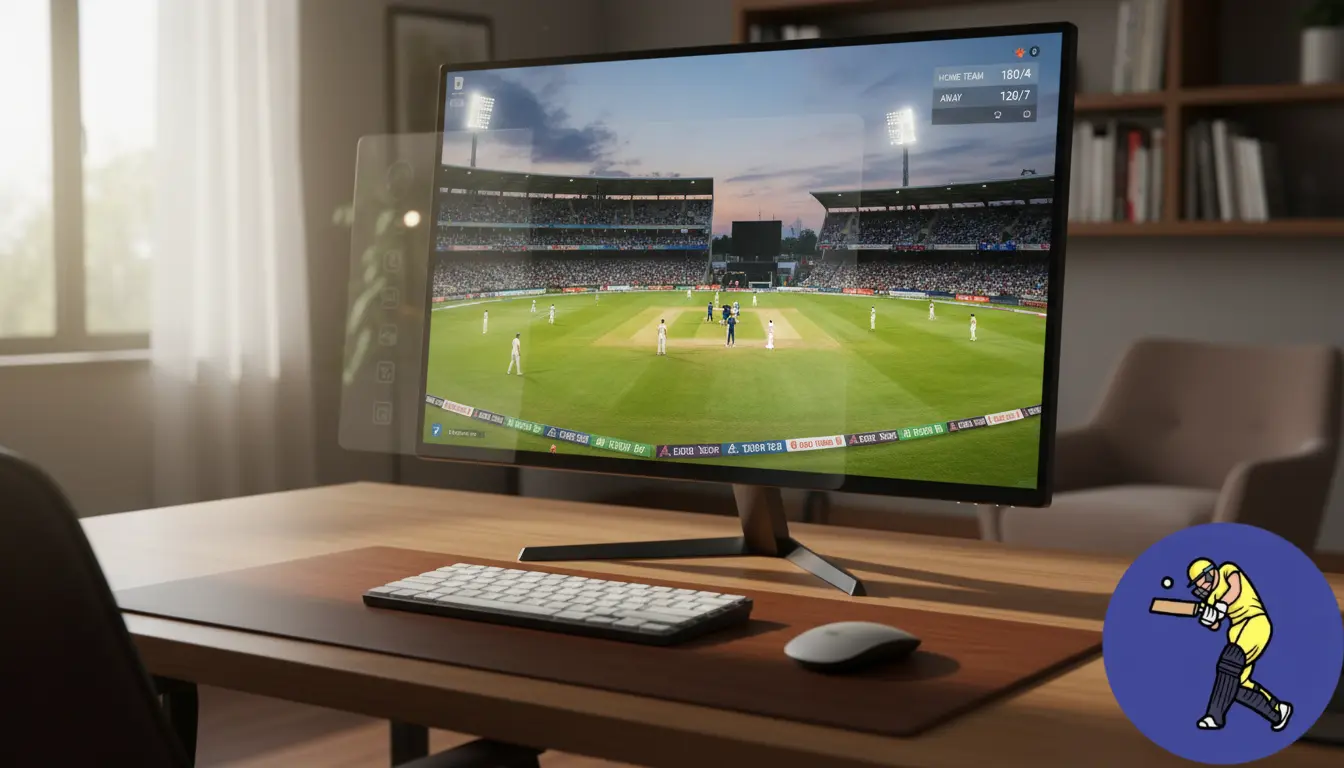
Do you want to use TouchCric on your PC for live cricket streaming with a larger screen, better graphics, and smoother performance? Since there is no dedicated Windows version available, many users think it’s not possible. But don’t worry, there is a simple way to run the official TouchCric XAPK on your computer, and this guide will show you exactly how to download, install, and use it.
By using an Android emulator, you can easily install TouchCric on your PC. Popular emulators like BlueStacks, LDPlayer, and MEmu allow you to watch live matches directly on TouchCric without compatibility issues.
In this guide, we’ll explain which emulator is best for your system requirements and walk you through the complete installation process step by step. For your convenience, we’ve also included screenshots of every stage so you can follow along without confusion.
What is Touch cric on PC?
TouchCric is a free online cricket-streaming platform that offers high-quality live matches, match schedules, real-time statistics, scoreboards, and other cricket updates. Running it on a computer enhances the overall viewing experience compared to mobile.
To use TouchCric on your PC, you’ll need an Android emulator and an XAPK installer. Install an emulator like BlueStacks, LDPlayer, or MEmu, then add an XAPK installer inside it to properly load the TouchCric file. This setup creates a virtual Android device on your computer, allowing you to run the same mobile version of TouchCric without any compatibility issues.
Watching TouchCric on a PC provides several performance benefits. You get a larger and clearer display, smoother streaming, and improved graphics, making long match sessions more enjoyable and immersive. This setup turns your PC into an ideal platform for high-quality cricket viewing.
Setting Your PC for touch cric
Setting up your PC for Touchcric is essential for a smooth streaming experience. Proper system requirements and browser compatibility are key factors to ensure the app runs effectively.
System Requirements
To use Touchcric, your PC/Laptop must meet certain system requirements for optimal performance. Here are the key specifications:
| Requirement | Details |
|---|---|
| Operating System | Windows 7,8,10 |
| RAM | 2GB(4GB recommended) |
| Processor | Intel or AMD processor with 1.5 GHz or higher |
| Storage | 500 MB Approximately |
| Graphics | A dedicated graphics card is recommended |
Browser Compatibility
Ensure that the web browser is compatible. Here are the details regarding browser compatibility:
Google Chrome: Always the best choice due to its speed and support for web applications
Mozilla Firefox: Another strong option that offers good performance and security features.
Microsoft Edge: Also compatible, but users should ensure they are using the latest version.
Always update the browser you are using to the latest version for the best performance with the touch cric.
How to Download and Install Touch Cric on PC?
Want to download, install, and use TouchCric on your PC for free? Here’s a simple, step-by-step guide to help you get started.
To run TouchCric on your computer, you’ll need three essential files:
Let’s walk you through the process step by step.
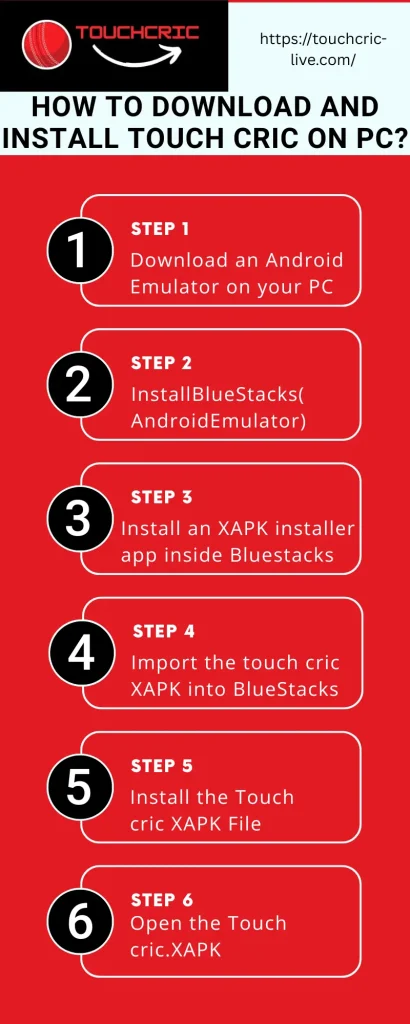
Step 1. Download an Android Emulator on your PC
Download your preferred emulator. To use BlueStacks, visit the official website and download it.
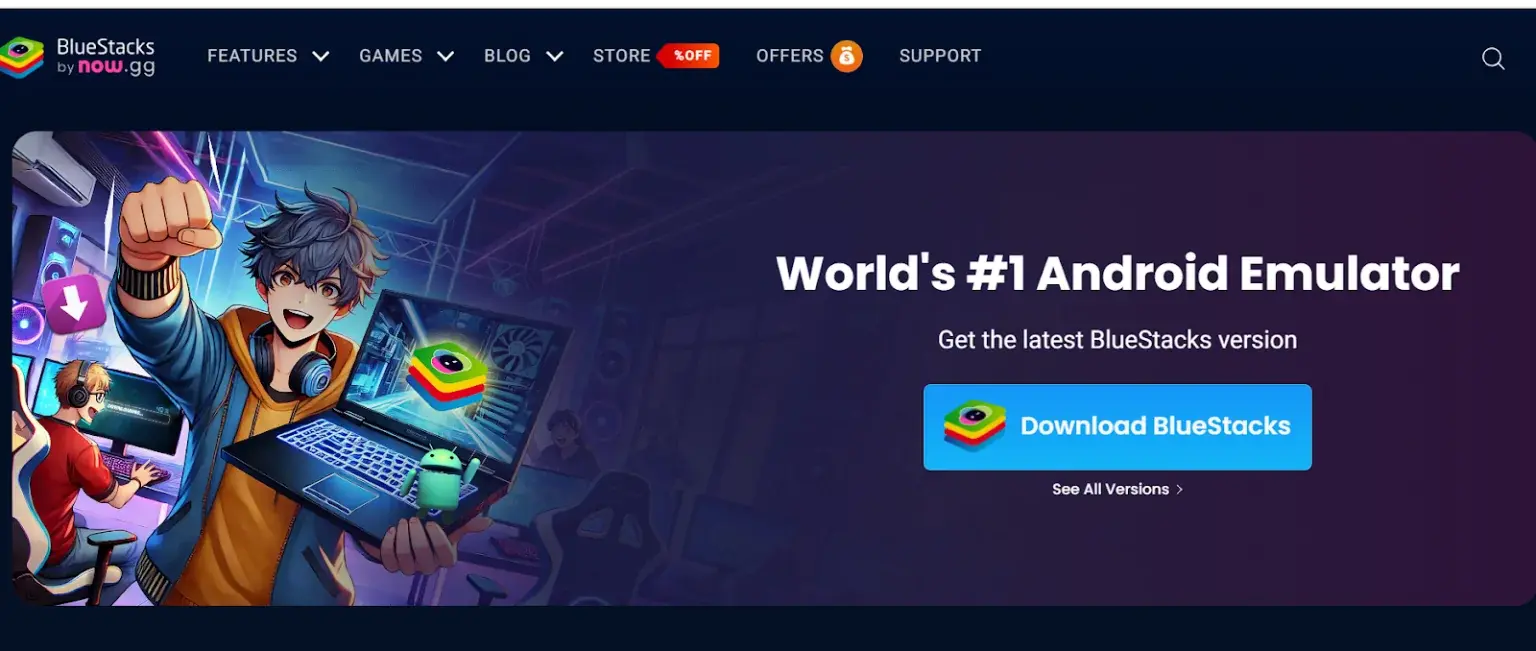
Click on the Download BlueStacks button, and the download will start automatically.
Once the download is completed, double-click the BlueStacks.
Step 2. Install BlueStacks(Android Emulator)
Double-click BlueStacks. The system will ask you to allow it to be installed. Click the Yes option. Then click the Agree and Install button to begin the installation.
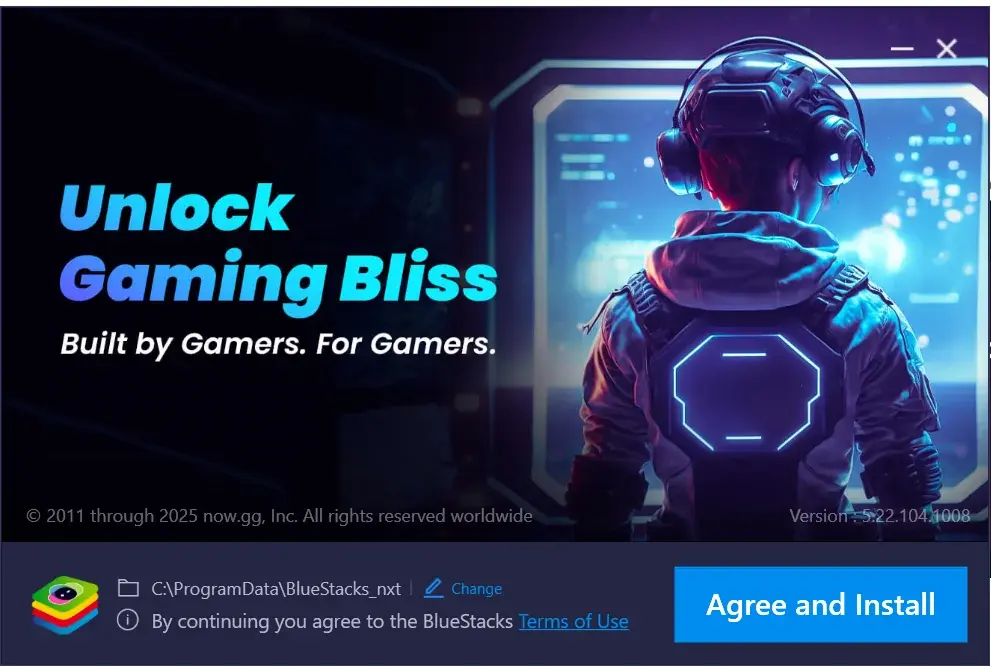
It will take time to complete the installation process. Once the installation process is completed, BlueStacks will be launched on your PC
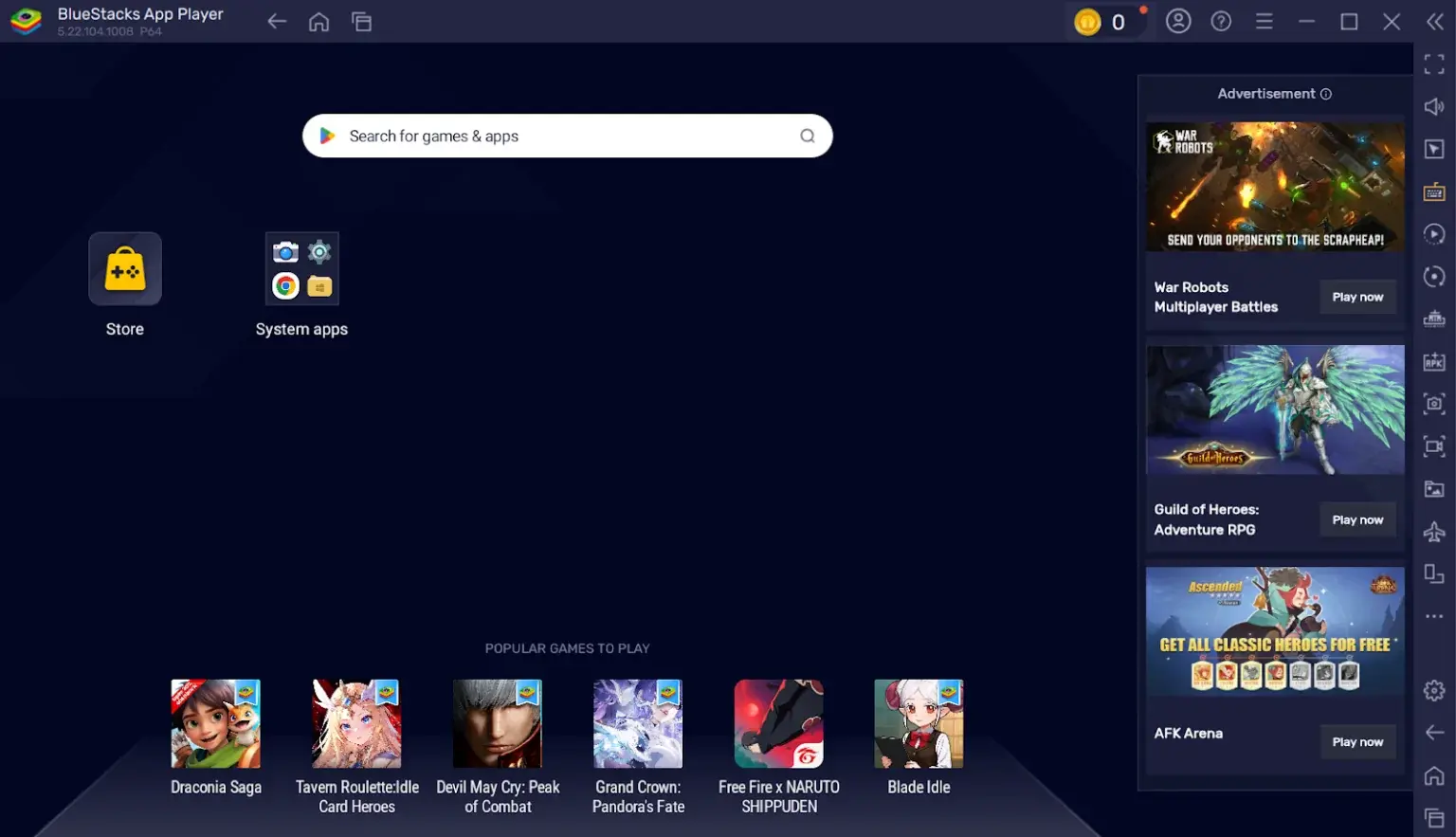
Step 3. Install an XAPK installer app inside Bluestacks
You can install the XAPK installer inside BlueStacks. Go to the System Apps and click the Play Store option.
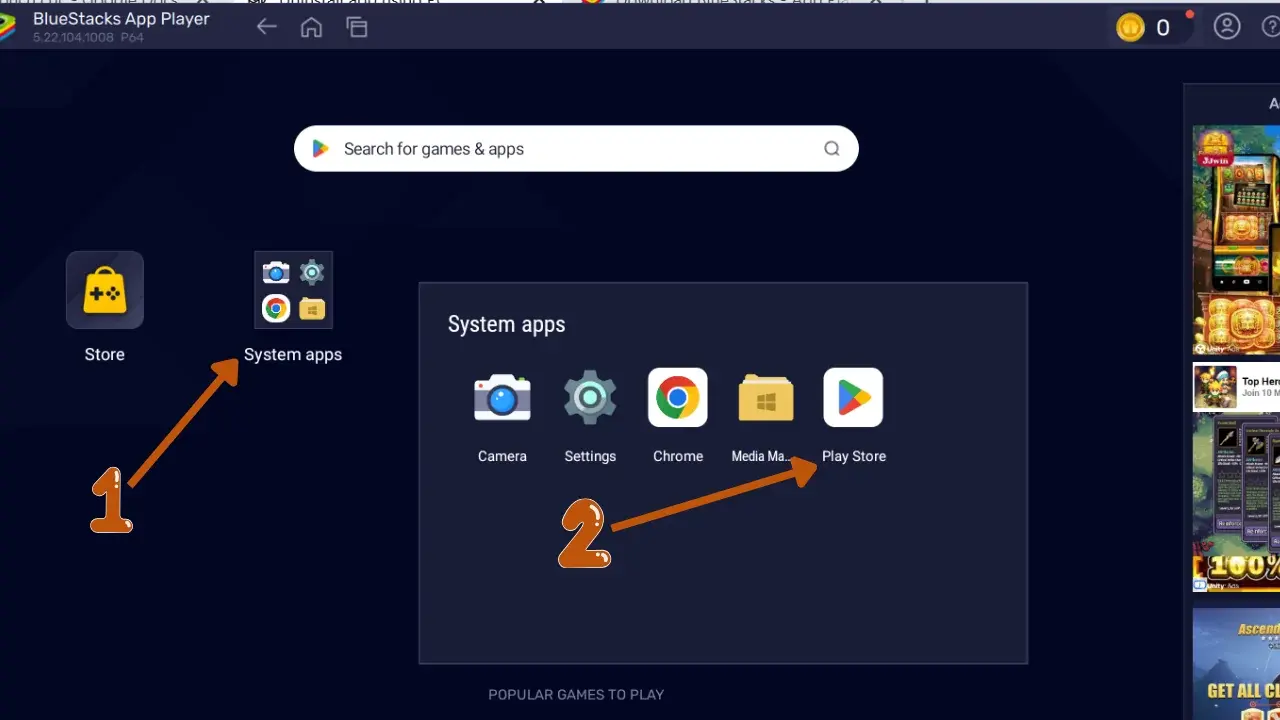
Click the Play Store option and complete the sign-in process by providing your email and password for your account. If you don’t have an email, click on the create account option and create an email to sign in to the Play Store.
Complete the verification step by providing your contact number, which is linked to your email address. Confirm your contact number via a text message or call to complete the verification step.
When you signed in to your account, search XAPK in the Play Store.
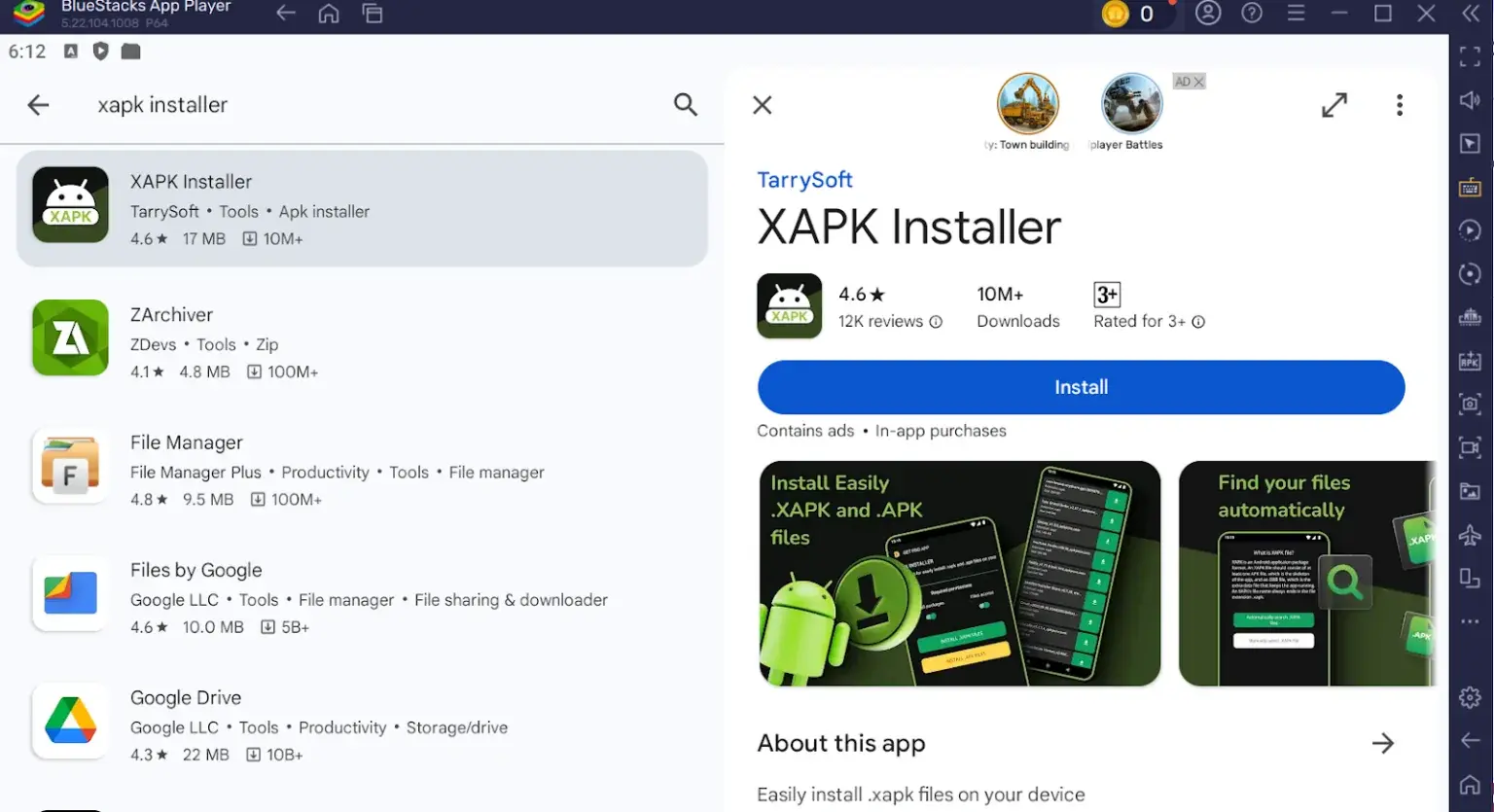
First, click the XAPK Installer, and then click the install button. The installation process will start.
When the installation process is completed, open it. Here, the installation process of XAPK Installer inside BlueStacks is completed.
Step 4. Import the touch cric XAPK into BlueStacks
First, download the touch cric XAPK file from https://touchcric-live.com/. When the file is downloaded, import it into BlueStacks.
There are three ways you can import the file to BlueStacks:
1- Drag and Drop Method: Drag and drop the Touch cric XAPK file to the BlueStacks window. BlueStacks will detect it and place it inside the emulator storage.
2- Through the Install APK Button: Click the Install APK button present at the right side of the BlackStacks, locate and select the file to import it to the emulator
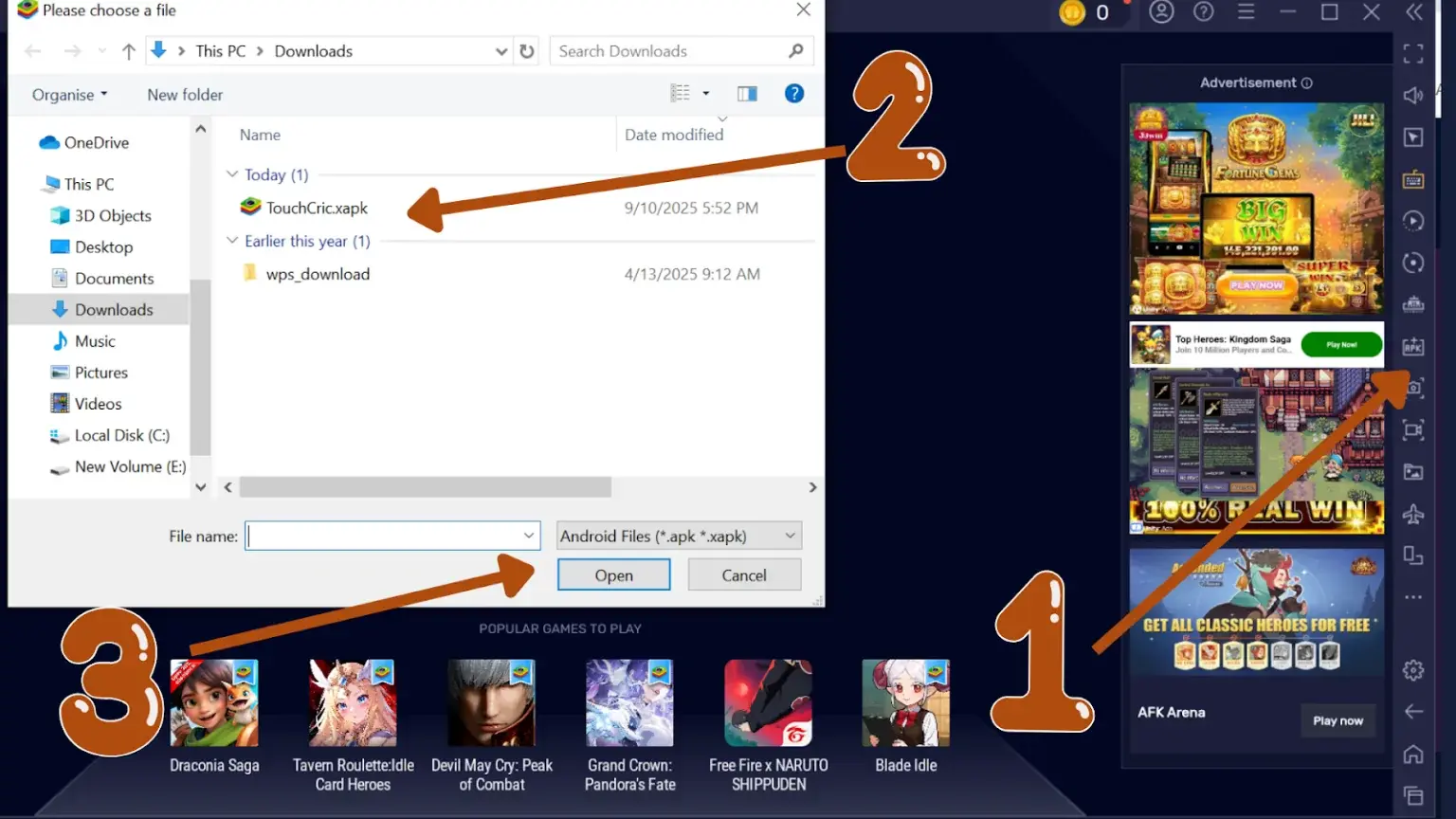
3- Through Media Manager Option: Open BlueStacks. On the home page of BlueStacks, click on the System Apps option. Then click the Media Manager option.
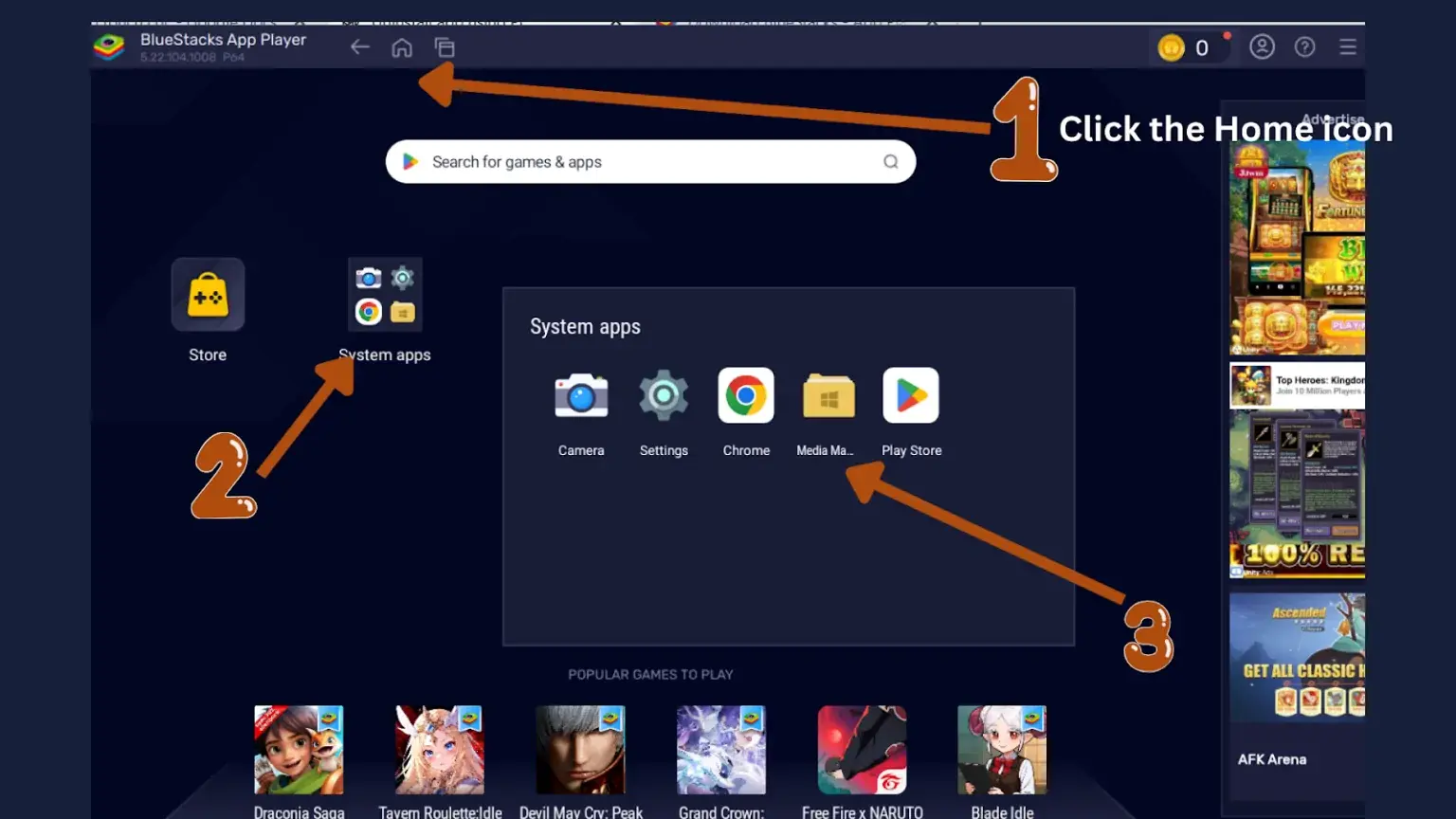
On the home page of BlueStacks, click on the System Apps option. Then click the Media Manager option. The page below will be displayed on the screen.
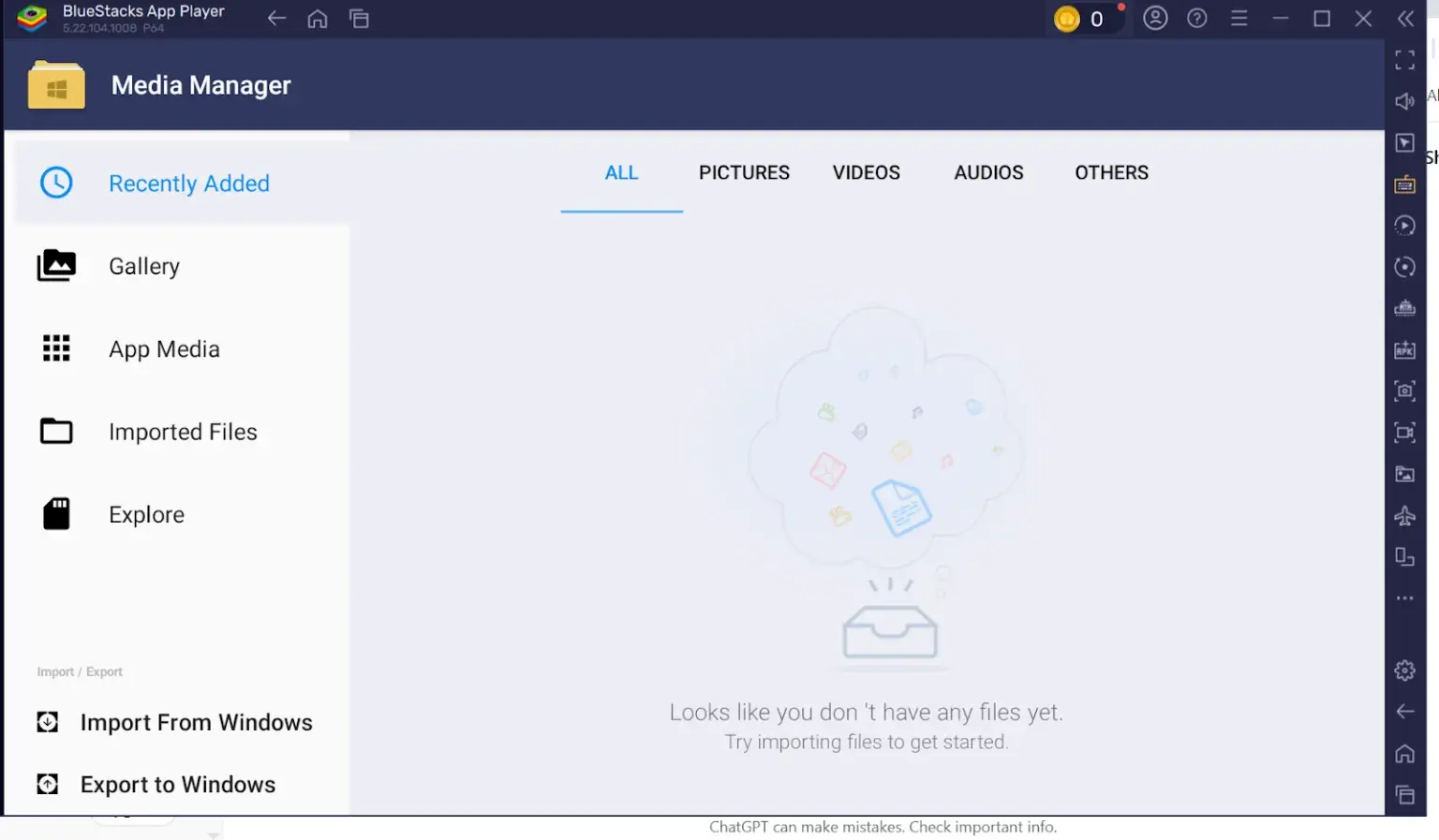
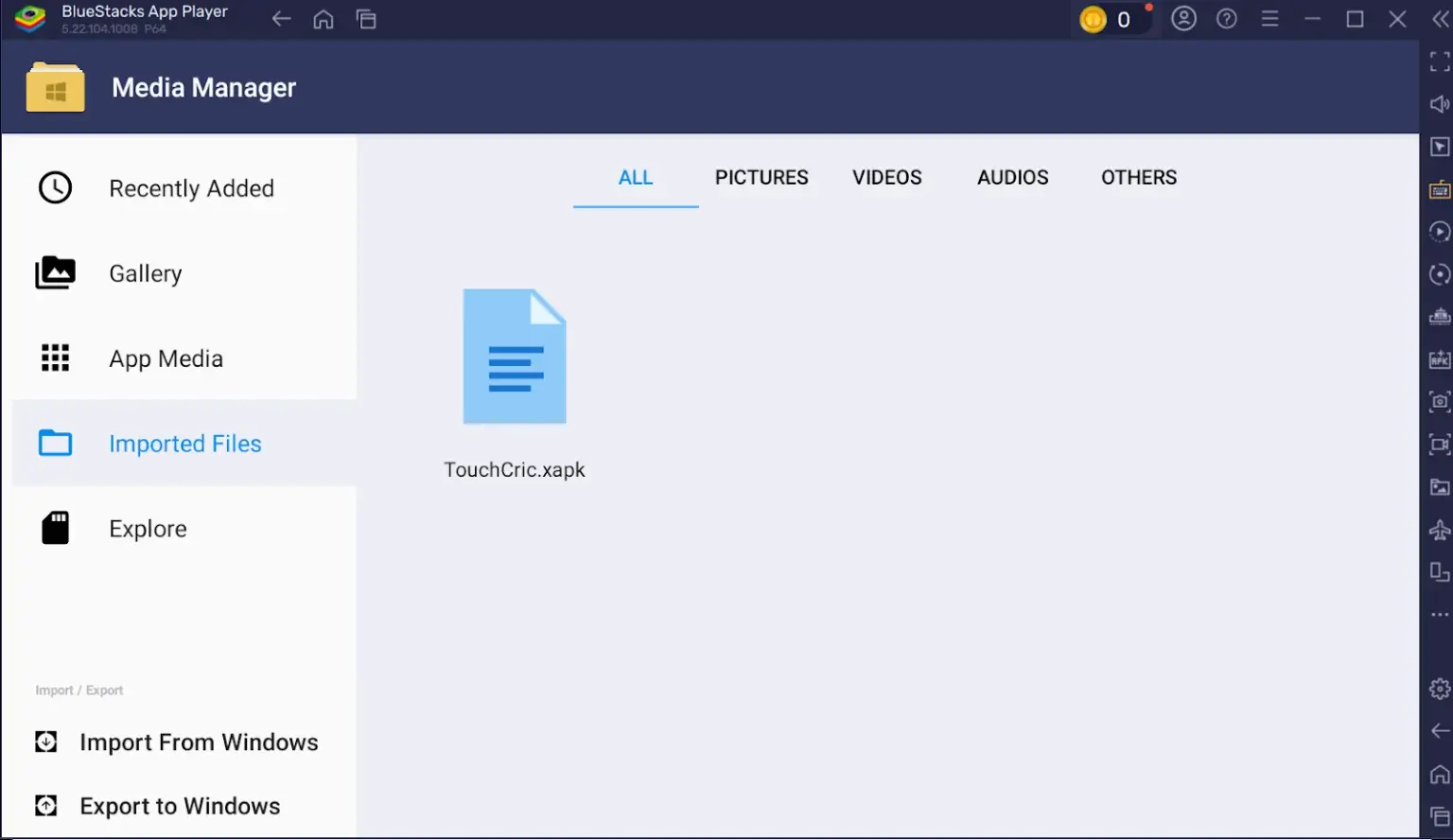
Click on the Import From Windows option. Locate and select the Touch cric xapk full pack file. The file will be imported to the emulator.
Step 5. Install the Touch cric XAPK File
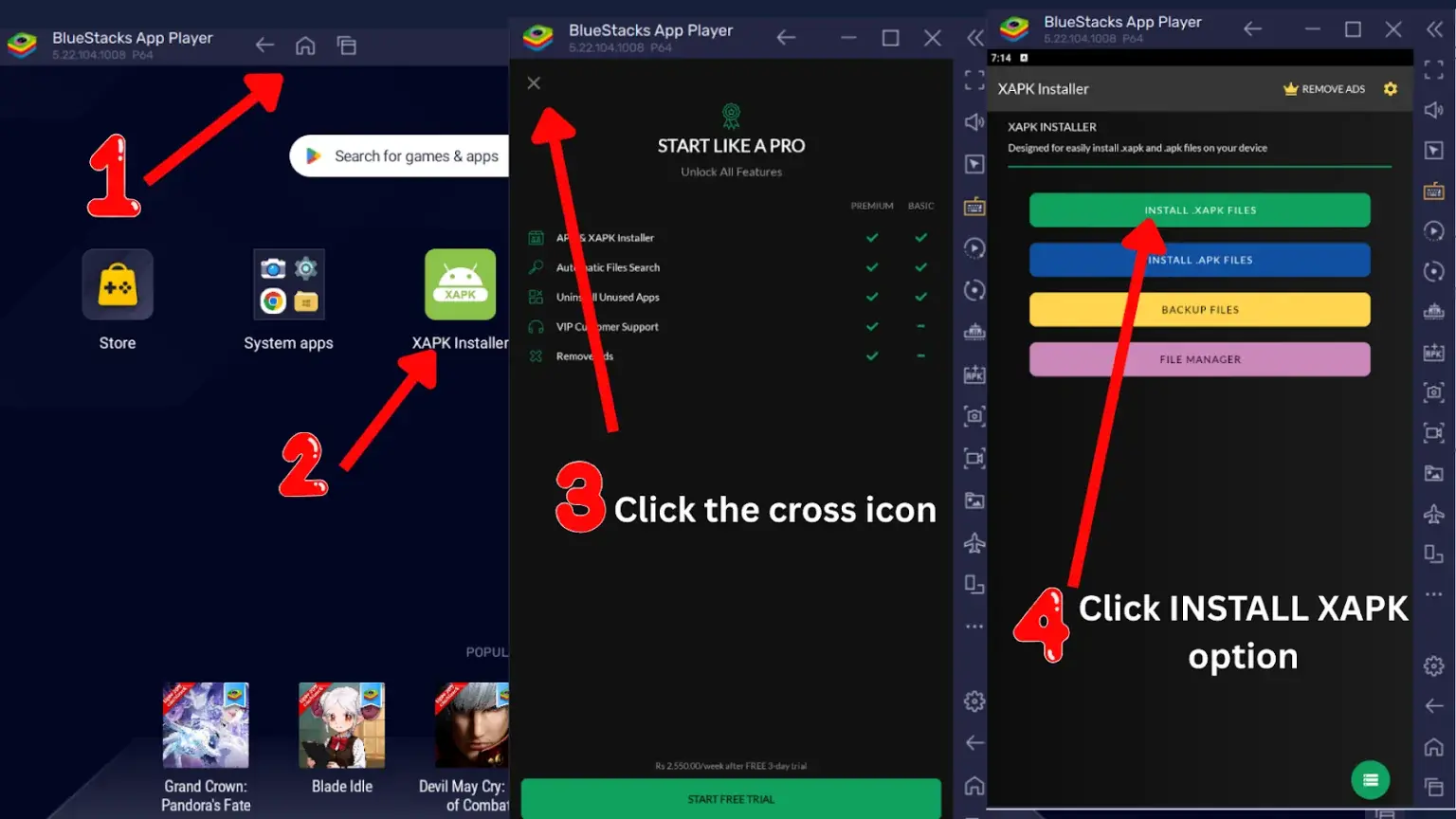
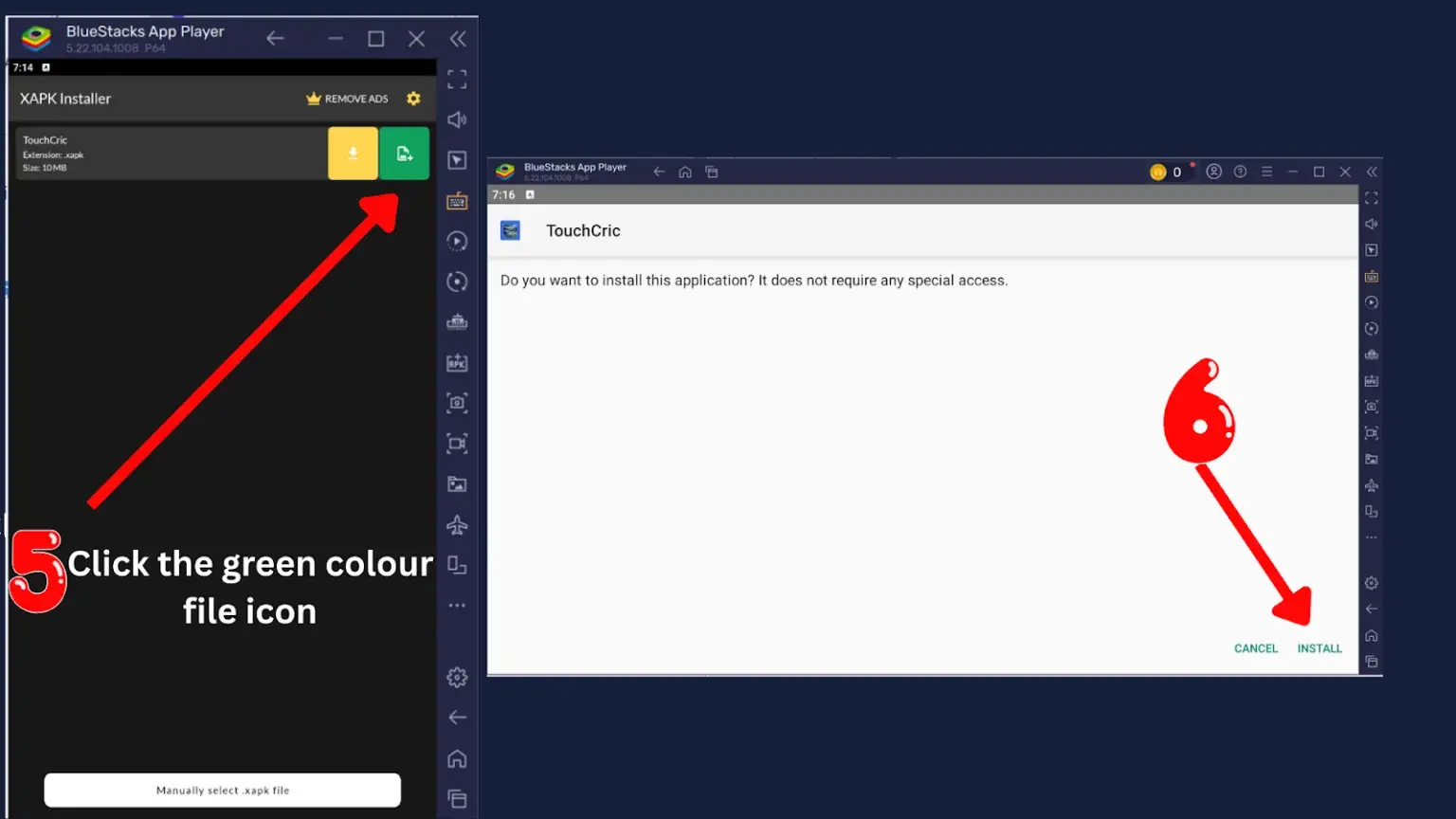
After importing the Touch cric XAPK file, the next step is to install it inside BlueStacks. Follow the steps below to install it:
Open the XAPK Installer.
Tick the cross icon. We don’t need the Pro version to install it.
Click the first option, which is “INSTALL . XAPK FILES”.
It automatically detects the.XAPK files. You will see the Touch Cric XAPK file here.
Click the green button with a + sign to install the Touch Cric XAPK file.
Click the Install option. The installation process will start.
It will be successfully installed on the emulator.
Step 6. Open the Touch cric.XAPK
Go to the home page of BlueStacks. Here, you will see the Touch cric XAPK app. It means that it is successfully installed on your emulator.
Click it to open it. All the match schedules will be displayed on the screen. Click on a match to see the scoreboard.
This is how you can set up the Touch cric XAPK on your PC
Choosing the Right Emulator for TouchCric on PC
Selecting the right Android emulator is essential for running TouchCric smoothly on your PC. While many emulators are available, only a few deliver stable performance, fast loading, and full compatibility with low- to mid-range computers.
The emulator you choose should match your PC’s hardware requirements to ensure lag-free streaming and a better overall viewing experience. Although the setup process is similar across most emulators, picking the right one can significantly improve performance. Below is a comparison table to help you choose the best option.
| Features | BlueStacks(Best for High Performance) | MEmu(Best for Low-End PCs) | LD Player(Best Balance of Speed & Stability) |
| Ideal for | Mid-range & high-end PCs | Low-spec & older PCs | Low to mid-range PCs |
| Performance | Smooth, high-quality graphics | Lightweight, low RAM usage | Fast Loading, Stable performance |
| Ease of Use | Beginner Friendly | Less beginner-friendly | Easy to use with a clean UI |
| Pros | Easy setup; smooth gameplay; frequent updates | Runs well on weak PCs; customizable; multi-instance | Fast & stable; great keymapping; multi-instance support |
| Cons | Needs 4GB RAM for good performance; ads; bloatware | Fewer features; slower updates | Ads, occasional bugs |
| Best Choice For | Users wanting the best graphics & performance | Users with minimal hardware resources | Users wanting a balance of speed and stability |
In summary, if you’re using a low or mid-range PC, MEmu or LDPlayer will give you smoother performance. But if you have a recommended or high-end system, BlueStacks is the best choice for top-tier graphics, speed, and the overall best experience.
Key Features of Using TouchCric on PC
Watching live cricket on PC through TouchCric enhances your overall streaming experience with clearer visuals, smoother performance, and a more comfortable setup.
Enhanced Graphics
PC streaming offers sharper visuals, higher FPS, and smoother playback. The larger display makes every match more exciting and immersive, allowing you to enjoy high-quality graphics that mobile devices can’t match
No Heating or Battery Drain
Unlike mobile phones, PCs do not overheat or lose battery during long match sessions. As long as your system is plugged in, you can watch full ODI and Test matches without interruption, overheating, or performance drops.
Large Screen Viewing
With a bigger screen, you get a clearer and wider view of the match details. It’s ideal for group viewing and ensures you don’t miss any important moments or on-screen information.
Tips to Reduce Buffering or Lagging While Using TouchCric on PC
Smooth streaming is essential for enjoying live cricket, and buffering can ruin the experience. Here are a few simple tips to improve performance
Close Background Apps
Shut down unnecessary programs to free up RAM, CPU power, and bandwidth for TouchCric.
Check Your Internet Speed
Make sure your connection meets streaming requirements. You can test your speed using any reliable online speed-test tool.
Limit Connected Devices
Too many devices on the same network slow down internet performance. Reduce the number of active devices to improve streaming performance.
By following these tips, you can significantly reduce buffering and lagging issues and enjoy uninterrupted live cricket matches on your PC.
FAQs
Conclusion
Using TouchCric on your PC is simple once you choose the right emulator and follow the proper installation steps. Whether you prefer BlueStacks, LDPlayer, or MEmu, each option lets you enjoy smoother streaming, better graphics, and a more comfortable viewing experience. With the setup complete, you can now watch all your favorite cricket matches on a bigger screen without any performance issues.